LLeMental works in three simple stages:
- Upload your template
- Create a project
- Generate client-ready documents
LLeMental transforms your existing PowerPoint templates into intelligent automation tools. You upload the templates you already use, add context for each project or use case, and generate customized presentations in seconds — with your formatting, branding, and structure preserved exactly as designed.
Step 1: Connect With Our Team
Getting started with LLeMental begins with a conversation — we set up every account directly with our customers.
- Schedule a demo with the LLeMental team
- We’ll walk you through the platform and discuss your specific use case
- Our team configures your account and workspace
- You’re ready to upload templates and start generating
During onboarding, we’ll learn about the types of presentations your team creates so the platform can be configured to best support your workflow. Typical topics include:
- Your role and team structure
- The types of presentations you create most frequently
- Your primary use case for LLeMental
These details help provide overall context for how the platform assists you, and allow us to tailor the setup to your organization from day one.
Once your account is ready, you’ll have access to your Workspace, where you can manage:
- Templates – reusable AI-enabled PowerPoint templates
- Projects – individual document generations created from templates
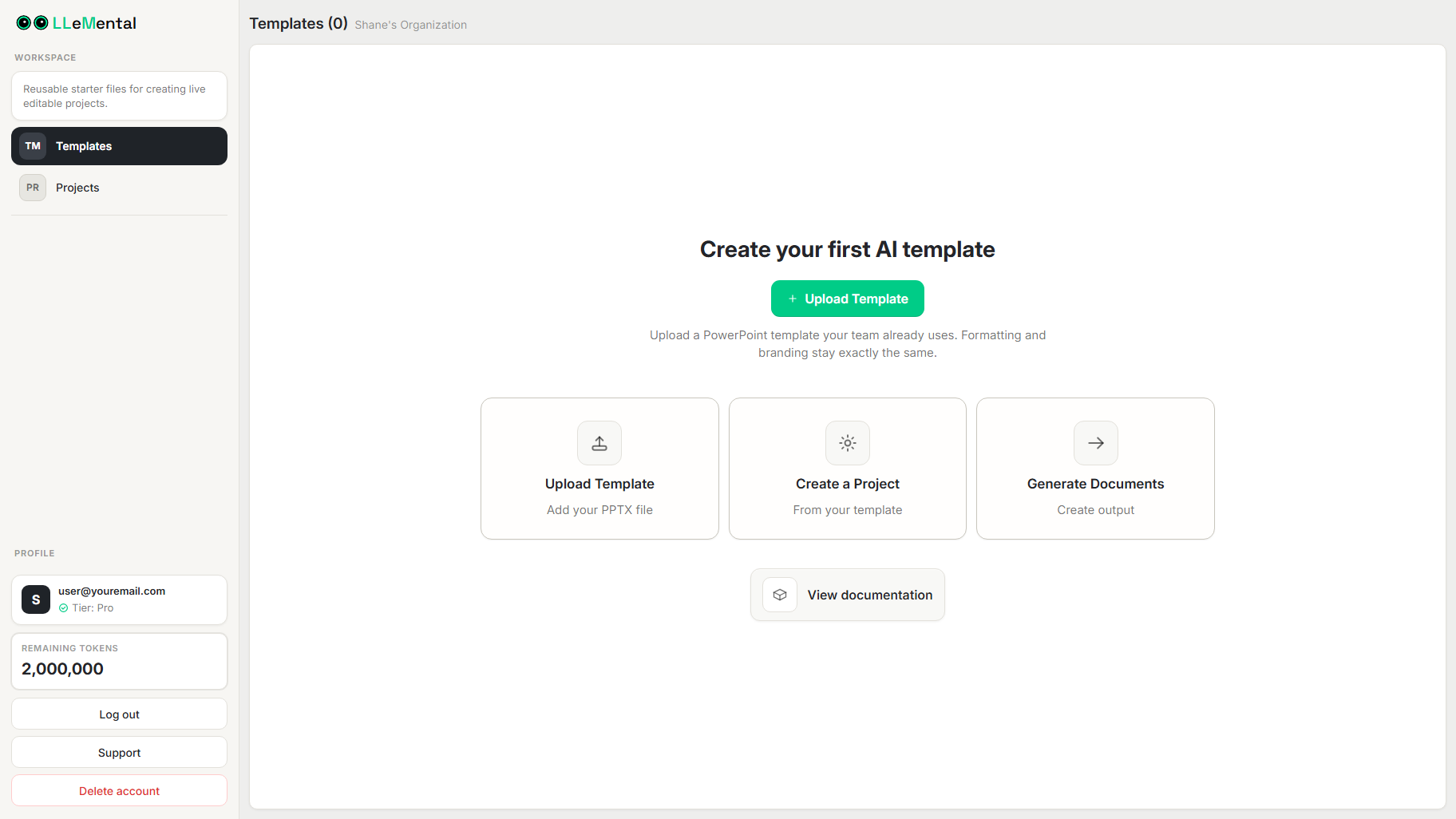
Your Workspace is the home base for everything in LLeMental. From here you can upload new templates, access saved templates, and generate presentations.
Note: LLeMental currently supports
.pptx(PowerPoint) files for templates at this time. Word document support is coming soon.
Step 2: Upload Your Template
The best templates for LLeMental are PowerPoint files you create repeatedly with the same structure but different content each time.
Great template examples:
- Client proposals and pitch decks
- Marketing strategy presentations
- Sales reports and business reviews
- Project status updates
- Investment memos and financial reports
LLeMental is designed to work directly with your existing templates, meaning:
- Your branding remains unchanged
- Slide layouts remain intact
- Formatting and typography are preserved
To upload your template:
- From Your Workspace, click Upload Template
- Select your
.pptxfile - Your file will be processed and appear in the library
Step 3: Generate a Project
After uploading a template, you’ll see the template in your library.
Optional: Add Instructions
Users can add template specific instructions before generating a new project. This is a completely optional feature that allows more user control over the generated output.
For example:
- What type of presentation is this template used for?
- Which sections of the slide change each time?
- Are multiple text areas related to the same concept?
- Should the content be written as bullets, lists, or paragraphs?
- How long should responses be?
You can describe:
- Which areas are dynamic
- Which areas remain static
- Expected content structure
- Preferred content length
- Formatting style (bullet lists, paragraphs, etc.)
The system also understands formatting from the template itself. For example, if a section is bold in your template, the generated content will maintain that formatting.
Instructions are saved and can be reused for all future projects that use this template.
Whether you add instructions or not, click Create Project to create a new project.
You will then be redirected to the Presentation Viewer. Upload supporting documents or text content to the chatbot to provide context for the AI to generate content.
Examples of supporting materials include:
- Research reports
- Client briefs
- Meeting notes
- Product documentation
- Strategy documents
These materials allow the AI to generate slides tailored to the specific project.
Once uploaded, LLeMental generates a first draft of slides using your template and the provided context.
Understanding Templates vs Projects
LLeMental separates reusable templates from individual document generations.
Templates
A Template is your original PowerPoint file that has been saved for AI generation.
Templates define:
- Slide structure
- Layout
- Branding
- Dynamic content areas
Once saved, templates can be reused indefinitely.
Projects
A Project represents a specific document generation based on a template.
Each project contains:
- Uploaded supporting documents
- Generated slides
- AI editing history
- Project-specific context
For example, you might use the same Sales Pitch Template to generate separate projects for:
- Client A
- Client B
- Client C
Each project stores its own supporting documents and edits so that work does not need to be repeated.
Step 4: Edit Generated Slides
After generation, you can review and refine the slides inside the editor.
There are two ways to edit your document:
Direct Slide Editing
You can modify slides directly in the visual editor, similar to working in PowerPoint. This allows you to:
- Adjust slide structure
- Add or remove elements
- Modify text content
AI-Assisted Editing
You can also use the AI chatbot assistant to make quick improvements to specific slides.
For example, you might ask the assistant to:
- Rewrite a section with stronger messaging
- Add supporting evidence
- Shorten a slide
- Improve clarity
This allows you to refine content without regenerating the entire presentation.
All project edits and conversations are saved within the project.
Step 5: Export the Final Presentation
When your document is complete, click Export to download the presentation as a .pptx file.
The exported file opens directly in PowerPoint with:
- All original template formatting preserved
- Layouts unchanged
- Content fully editable
This allows you to finalize and present your document using the same workflow your team already uses.
Summary: The Full Workflow
Here’s the complete LLeMental workflow at a glance:
- Upload your
.pptxtemplate → it appears in Your Library - Optional Add instructions to the template
- Create a Project from your template
- Generate by providing project context and supporting files
- Refine using AI Chat for targeted adjustments
- Download your completed, client-ready
.pptx
Next Steps
Now that you’ve created your first AI-powered presentation, here’s how to get even more from the platform:
- Learn advanced template configuration techniques for maximum precision
- Upgrade your account for more credits
Ready to automate your next presentation? Head to your Template Library and start generating!